
Adobe Express
See pricing details Visit Adobe Express →Free plan available
Premium: US$9.99/month
- Free social scheduling
- Paid brand kits and resizing
- Editable PDF imports

VistaCreate
See pricing details Visit VistaCreate →Free Starter plan
Pro: US$13/month or US$10/month billed yearly
- Up to 10 Pro team seats
- Pro background removal
- Unlimited Pro Brand Kits

Snappa
See pricing details Visit Snappa →Free: 3 downloads/month
Pro: $15/month or $10/month billed yearly
- Static blog and social graphics
- Unlimited Pro downloads
- Custom fonts on Pro
Adobe Express is my first recommendation for most businesses replacing Canva. It covers a broad mix of content creation, includes social scheduling on its free plan, and offers a practical route for importing editable designs.
But the best Canva alternatives depend on what you make. A business publishing social posts has different needs from a consultant creating interactive reports. Switching only makes sense if the new tool solves a specific problem, whether that’s subscription cost, team access, or a missing export format.
Canva remains a sensible choice if your templates and publishing routine already work. A slightly cheaper subscription won’t necessarily justify rebuilding your design library.
Key takeaways
- Adobe Express: The broadest replacement in this shortlist, with Premium at US$9.99 monthly.
- VistaCreate: Worth considering for social content and a Pro subscription covering up to 10 team seats.
- Snappa: A focused choice for static graphics, but free accounts get just 3 downloads monthly.
- Visme: Best suited to presentations and data-heavy content, with downloads reserved for paid plans.
- Try the finished output: Before switching, create, edit, and download a representative design.
Comparing Canva Alternatives
Adobe Express offers the strongest starting point for general use. The other options become more compelling when you have a narrower brief.
Compare the plan you would actually need, not just the entry price. Download restrictions, team allowances, and annual commitments can change the value considerably.
| Tool | Best use | Main free-plan limit | Paid pricing and billing | Team allowance | Main tradeoff |
|---|---|---|---|---|---|
| Adobe Express | General marketing content | Premium assets and tools require payment | Premium: US$9.99/month, billed monthly | Individual Premium price shown; assess team plans separately | Brand kits and one-click resizing require Premium |
| VistaCreate | Social content and small teams | Asset choice can affect downloads; test your intended design | Pro: US$13/month, or US$10/month billed yearly | Up to 10 seats on Pro | Free download suitability needs checking |
| Snappa | Blog and static social graphics | 3 downloads/month for 1 user | Pro: $15/month, or $10/month billed yearly | Team covers 5 users at $30/month, or $20/month billed yearly | Narrower scope than an all-in-one design tool |
| Visme | Presentations and data-heavy reports | Basic has no downloads | Starter: US$147/year/person; Business: US$297/year/person | Paid prices are per person | Advanced exports and brand tools require Business |
Snappa prices are shown in displayed dollars; confirm the checkout currency. For comparison, Canva Pro’s US baseline is US$18 monthly or US$144 annually, equivalent to US$12 monthly. Canva prices vary by locale.
Which Canva Alternative Is Best for My Business?
- You manage varied marketing content: Start with Adobe Express, especially if editable PDF imports would help you switch.
- Several people create social posts: Consider VistaCreate Pro for its allowance of up to 10 team seats.
- You mainly need blog headers and promotional images: Snappa’s static-graphics focus may suit you better than a broader suite.
- You produce reports or presentations: Look at Visme, then check which plan includes your required download format.
1. Adobe Express: For an All-in-One Design Tool
Adobe Express is the closest broad replacement for Canva in this shortlist. Its combination of everyday editing, social scheduling, and video tools makes it a sensible starting point for varied marketing work.
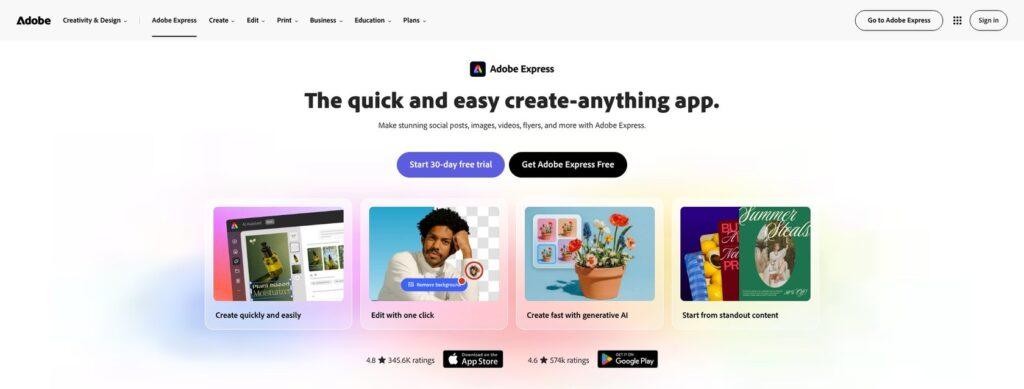
I’d put it first on your shortlist if you need to bring existing Canva designs across. Its editable import options are useful, but they aren’t a promise of perfect conversion.
What I Like
- ✔️ Useful free scheduling: The Free plan supports scheduling to 1 account per social network. That gives a solo business owner a practical way to prepare and publish content.
- ✔️ Relevant Premium upgrades: Brand kits, one-click resizing, and video background removal address recurring marketing tasks rather than simply adding more assets.
- ✔️ More account capacity on Premium: Scheduling expands to 3 accounts per network, which may help when you manage multiple brands.
- ✔️ An editable migration route: Exported Canva files can become editable Express projects. PDF imports offer more flexibility than uploading a flattened image.
What I Dislike
- ❌ Important tools sit behind Premium: If consistent branding and repeated resizing are your main reasons to switch, budget for the paid plan.
- ❌ Imported layouts need inspection: Uncommon fonts or complex PDF layouts can change during conversion. Allow time to fix files before using them as templates.
How Much Does Adobe Express Cost?
- Free: US$0. Includes basic editing, 5GB storage, and scheduling to 1 account per social network. A starting point for light content work.
- Premium: US$9.99 monthly. Billed monthly without an annual commitment. Adds brand kits, one-click resize, video background removal, and expanded scheduling.
A 30-day Premium trial is available. Use it to check the features you’ll need repeatedly, not just to browse templates.
The monthly price is attractive against Canva Pro’s US$18 month-to-month baseline. Still, don’t assume every asset or workflow you encounter is available on Free.
How Does Adobe Express Compare to Canva?
- Lower monthly commitment: Adobe Express Premium costs less than Canva Pro at the stated US monthly rates. That matters if you prefer not to pay for a year upfront.
- Similar reasons to upgrade: Both paid options address recurring work such as resizing and social scheduling. Compare the specific tasks you need rather than treating either subscription as automatically better.
- Migration with qualifications: Editable PDF imports make Express worth trying for an existing Canva library, but retaining Canva avoids conversion work altogether.
Should You Use Adobe Express Instead of Canva?
Choose Adobe Express if you want a broad replacement at a lower monthly subscription price. Stay with Canva if your existing templates save enough time to outweigh that saving.
2. VistaCreate: For Social Media Content and Small Teams
VistaCreate is my pick for businesses that mainly create social content and want several people involved. Its Pro plan’s allowance of up to 10 seats gives it a clear reason to be on a small team’s shortlist.
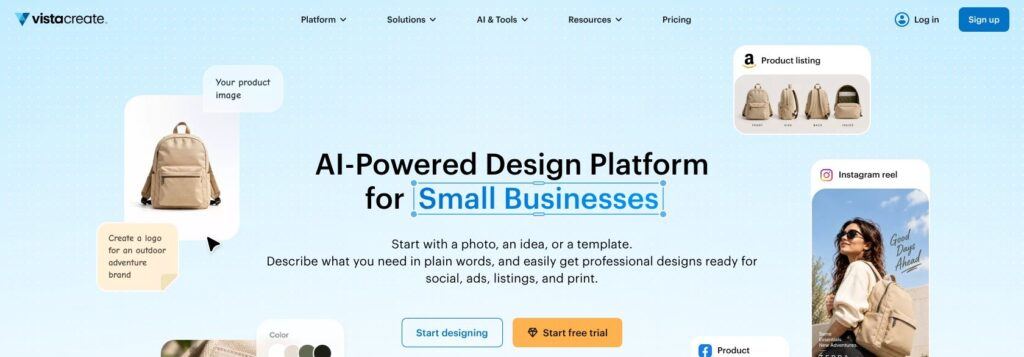
The free Starter plan also includes useful basics. However, don’t build your publishing schedule around assumed free downloads: the assets inside your design can affect what you can download.
What I Like
- ✔️ A practical Starter package: Basic editing, social scheduling, 1 Brand Kit, and 10GB storage give you room to explore a repeatable content workflow.
- ✔️ Up to 10 seats on Pro: This is a compelling arrangement if multiple colleagues need to participate. Confirm that the team setup fits how you share work.
- ✔️ Useful production tools: Pro includes a background remover and resizing, which are relevant when adapting a promotion for several placements.
- ✔️ Brand management and recovery: Unlimited Brand Kits and version history on Pro are useful if you manage several businesses or need to revisit an earlier design.
What I Dislike
- ❌ Free downloads require care: Creative-asset restrictions can affect downloads of designs containing those assets. Try downloading your intended design before relying on Starter.
- ❌ Efficiency features require Pro: Resizing and background removal are paid features. Starter is less appealing if those are central to your daily work.
- ❌ The trial has an asset limit: The Pro trial allows 25 creative-asset downloads per day. Don’t treat a trial as unrestricted access.
How Much Does VistaCreate Cost?
- Starter: Free. Best for exploring the editor and checking whether your intended designs work within the free restrictions.
- Pro: US$13 monthly, or US$10 monthly with yearly billing. Includes up to 10 team seats alongside the paid editing and brand-management features.
VistaCreate also offers a 14-day Pro trial. Confirm the billing period and total at checkout, particularly if you’re choosing the annual option.
For a solo creator, compare the editing features you need. For a team, the included seats are the more important part of the calculation.
How Does VistaCreate Compare to Canva?
- A different team-cost proposition: VistaCreate Pro includes up to 10 seats. Canva Business’s US baseline is US$25 monthly or US$250 annually per person, though the plans aren’t feature-for-feature equivalents.
- More Brand Kits on the stated paid plans: VistaCreate Pro includes unlimited Brand Kits; Canva Pro includes 5. That distinction matters more to multi-brand work than to a single shop.
- Free branding isn’t unique: Canva Free also includes 1 Brand Kit, limited to 3 colors. VistaCreate’s free Brand Kit alone isn’t a reason to move.
Should You Use VistaCreate Instead of Canva?
Choose VistaCreate if social content and shared team access dominate your needs. I’d verify your intended downloads and team workflow before committing, rather than choosing solely on the seat count.
3. Snappa: For Straightforward Blog and Social Graphics
Snappa makes the most sense when you want a focused tool for static graphics. If your typical job is a blog header or promotional image, a narrower product may be a better fit than an all-purpose design suite.
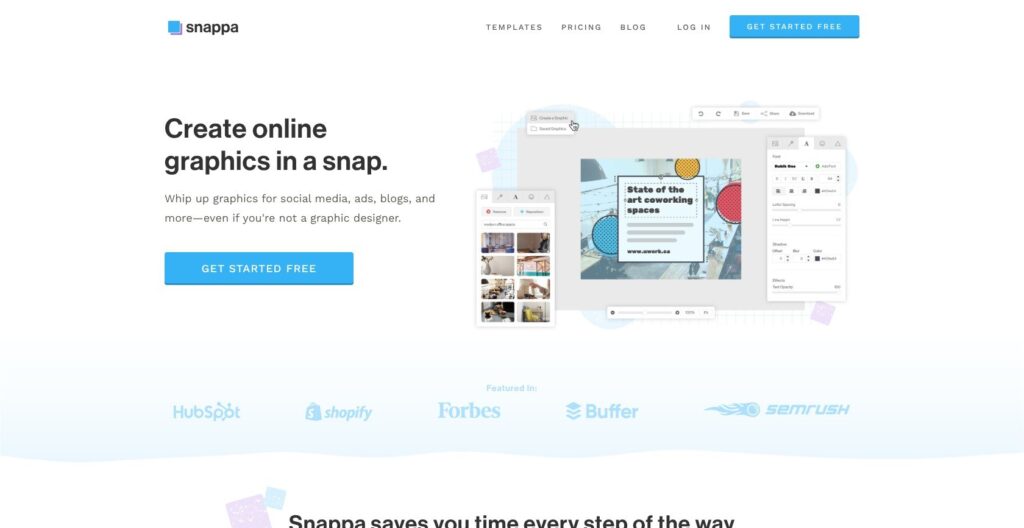
That focus is also its limitation. I wouldn’t recommend Snappa as your default replacement if your Canva subscription supports a varied mix of presentations and video content.
What I Like
- ✔️ A focused option: If you mainly make blog headers and social images, Snappa keeps the buying decision centered on those jobs.
- ✔️ Unlimited downloads on Pro: Once you upgrade, the free plan’s download ceiling no longer dictates your publishing volume.
- ✔️ Support for your own assets: You can upload logos and graphics, while Pro adds custom font uploads and image background removal.
- ✔️ A 5-user team option: Team adds collaboration for a defined group size, giving small businesses a straightforward starting point for budgeting.
What I Dislike
- ❌ Only 3 free downloads monthly: Starter is suitable for an occasional graphic or an evaluation, not a daily content schedule.
- ❌ A narrower replacement: Its static-image focus is less suitable than Adobe Express for a business seeking a broad content tool.
- ❌ Desktop-oriented working: Snappa is a browser-based desktop and laptop service. Check that this matches where you expect to create and edit.
How Much Does Snappa Cost?
- Starter: Free for 1 user. Includes 3 downloads per month, so it’s best for occasional needs.
- Pro: $15 monthly, or $10 monthly billed yearly. The annual total is $120. Includes unlimited downloads, custom fonts, background removal, and Buffer/social integrations.
- Team: $30 monthly, or $20 monthly billed yearly. Covers 5 users and adds collaboration. The annual total is $240.
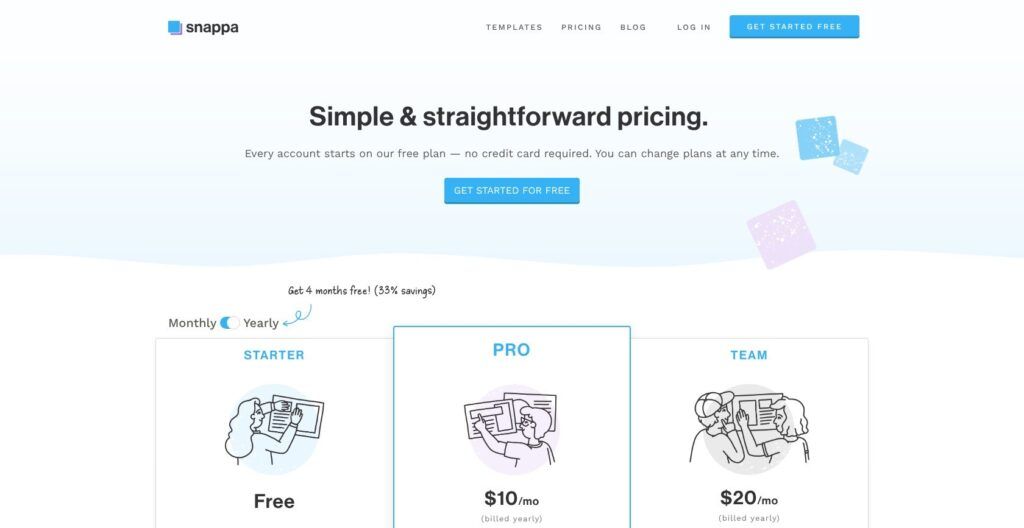
The upgrade decision is unusually clear: if you need more than 3 downloads a month, Starter won’t cover your workload.
That doesn’t automatically make Pro good value. You still need enough recurring static-image work to justify a dedicated subscription.
How Does Snappa Compare to Canva?
- Scope versus focus: Snappa is worth considering when static graphics are the job, rather than one part of a wider design workload.
- Free usage has a hard ceiling: A 3-download limit makes Snappa a poor choice if your main goal is frequent publishing without a subscription. Don’t leave a working Canva Free setup expecting a more generous allowance here.
- Savings need context: Snappa Pro displays $120 annually against Canva Pro’s US$144 annual baseline. Confirm the currency before treating that as a direct saving, and consider whether you would need another tool alongside it.
Should You Use Snappa Instead of Canva?
Choose Snappa if you want to pay for a focused static-graphics workflow. Skip it if you’re looking for either a generous free publishing allowance or a replacement for everything you currently do in Canva.
4. Visme: For Presentations and Data-Heavy Content
Visme is the specialist option here for presentations, reports, and interactive content. I’d shortlist it when your main challenge is communicating information, rather than producing another social graphic.
The buying decision depends heavily on output format. Its free Basic plan lets you explore the editor and online projects, but you need a paid subscription to download your work.
What I Like
- ✔️ Charts you can adapt: Visme offers charts and data widgets with customizable labels and colors. You can connect Google Sheets or import Excel data, though data integrations require a paid plan.
- ✔️ Standard downloads on Starter: JPG, PNG, and PDF downloads cover common image and document needs without requiring Business.
- ✔️ Broader output on Business: PPTX, HTML5, video, and GIF downloads provide options beyond a static document. Choose according to how your audience will receive the work.
- ✔️ Business controls beyond design: The Business plan adds a Brand Kit, analytics, and privacy controls, which can matter for externally shared presentations.
What I Dislike
- ❌ No downloads on Basic: This is not a free downloadable-design replacement for Canva. Treat Basic as a way to explore the editor and online projects.
- ❌ Key features require Business: Starter doesn’t include the Business plan’s Brand Kit or advanced export formats. The cheapest paid tier may not solve your problem.
- ❌ Per-person costs accumulate: Business is US$297 annually per person. Several contributors can turn a specialist tool into a substantial expense.
How Much Does Visme Cost?
- Basic: Free. Suitable for exploring the editor and online projects, but not for downloading finished files.
- Starter: US$12.25 monthly per person, billed as US$147 annually. Adds JPG, PNG, and PDF downloads.
- Business: US$24.75 monthly per person, billed as US$297 annually. Adds the broader exports, Brand Kit, analytics, and privacy controls.
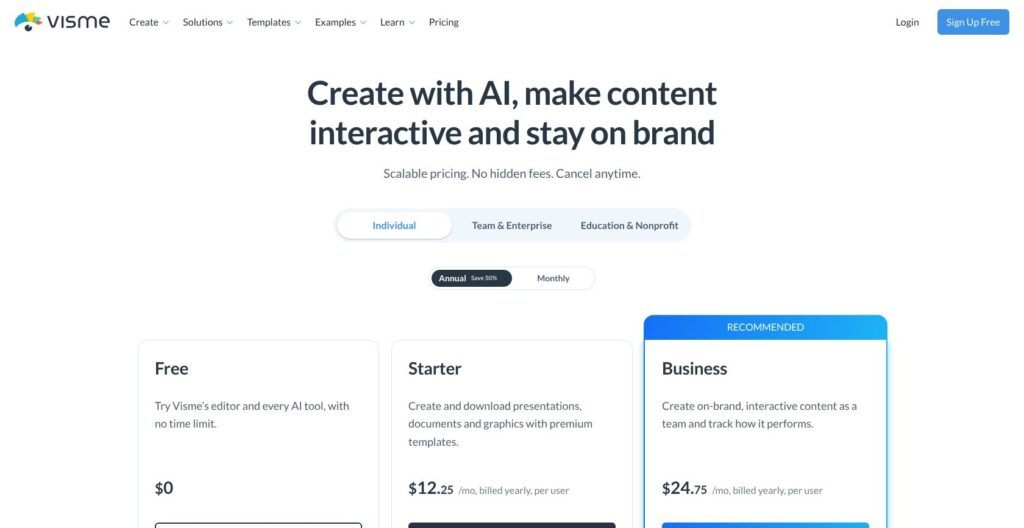
These are annual subscriptions expressed as monthly equivalents, not month-to-month prices.
If you need a PowerPoint-format download, budget for Business rather than Starter. If your only required deliverable is a PDF, Starter may be sufficient, provided you don’t also need Business-level branding or privacy features.
How Does Visme Compare to Canva?
- Buy it for the workload: Visme’s charts, data connections, and presentation exports are reasons to investigate it for reporting. They don’t establish that it will outperform Canva for your particular project.
- It isn’t the budget pick: Starter’s US$147 annual price is slightly above Canva Pro’s US$144 US baseline. Business costs considerably more.
- The deliverable determines the tier: In Visme, PPTX and HTML5 downloads require Business. Check the final file format before comparing subscription prices.
Should You Use Visme Instead of Canva?
Choose Visme if presentations and data-heavy communication justify a specialist subscription. For routine social graphics, I’d start with Adobe Express or VistaCreate instead, and avoid paying for capabilities your business won’t use.
How Do I Choose the Right Canva Alternative for My Business?
Choose around your recurring work, not the longest feature list. The best fit should handle the task you repeat every week without creating a new bottleneck.
Use this checklist to narrow your choice:
- Output: Identify your main deliverable, such as a promotional image, report, or presentation.
- Usable free access: Check whether you can download the finished design with the assets you intend to use.
- Total cost: Compare the required plan, billing commitment, and number of people who need access.
- Brand consistency: Decide whether you need custom fonts, multiple Brand Kits, or just a reusable template.
- Delivery format: Confirm the exact file type your client, printer, or colleague expects.
Then run one practical trial: recreate a real design, change its dimensions, and download the result. If colleagues will contribute, ask one to make a revision too.
I’d favor the tool that handles that complete task cleanly over one with more impressive extras.
How Do I Move My Designs From Canva to an Alternative?
Start with one representative design, not your entire library. Migration is much easier to judge when you can inspect the result before committing.
- Preserve your originals. Keep the Canva projects and export copies of important finished work before canceling a paid subscription.
- Gather reusable assets. Organize your logos, original images, brand colors, and fonts you’re entitled to use.
- Choose an appropriate format. PNG and JPG generally become flattened images, without separately editable original text or layers.
- Test editable imports where supported. Adobe Express can convert exported Canva files into editable projects. With PDFs, check fonts, spacing, and complex layouts carefully.
- Rebuild recurring templates first. Prioritize designs you reuse regularly instead of transferring every old campaign.
For Adobe Express PDF imports, keep files under 99MB and no longer than 99 pages.
Editable doesn’t mean identical. Even a successful import may require corrections. Keep access to the original until you’re confident the replacement handles both the design and its final export.
How We Compare Design Tools
These recommendations are based on official pricing, product information, and support documentation, not hands-on product testing.
The comparison prioritizes practical fit for small businesses: usable free access, paid feature restrictions, billing commitments, team allowances, export formats, and migration options. The ranking is an editorial judgment, not a measured performance score.
Adobe Express leads for its breadth; the other picks address more specific needs. The research doesn’t establish editor speed or ease of use, so those remain part of your trial.
Pricing checked in October 2026. Confirm local prices and checkout terms before subscribing.
Final Verdict: Which Canva Alternative Should You Pick?
Adobe Express is my default recommendation for a broad Canva replacement, particularly if you want lower month-to-month pricing and editable import options.
Choose VistaCreate for social content with several contributors. Pick Snappa when focused static-graphics production is enough. Consider Visme when reports and presentations justify its paid export and business features.
Staying with Canva is equally reasonable if it already handles your work well. The right switch should solve a concrete problem, not just replace one subscription with another.
FAQs
What is the best free Canva alternative?
Adobe Express is my first option to try among these free Canva alternatives. It includes basic editing and social scheduling. Check that your intended assets and tools are available on Free before relying on it for regular production.
Which app is most similar to Canva?
Adobe Express is the closest broad replacement in this shortlist. Among apps like Canva, VistaCreate is also worth considering if your work centers on social templates and small-team content production.
Can I import Canva designs and keep them editable?
Sometimes. Adobe Express supports editable imports from exported Canva files, including PDFs, but fonts and layouts may change. Uploading a PNG or JPG generally preserves the appearance as a flattened image, not the original editable elements.
Will switching from Canva save money?
It can, but compare equivalent billing periods and required features. Adobe Express Premium costs less than Canva Pro at the stated US monthly rates. Include team access, extra tools, and template-rebuilding time before deciding that switching is cheaper.


